Modifications
Each section below provides more information on how to make a modification in the system:
You can create a modification for any project with an 'Authorised' status.
You should start by downloading the Modification Tool from standard IRAS and completing it. The functionality within the tool will show the modification type and category and also which bodies will need to review it.
To create the modification in new IRAS, go to 'My Projects'. Select the IRAS ID of the project and from the project overview page, select 'New amendment' in the top right-hand corner of the screen.
Enter the sponsor modification reference number (this is the number assigned to the modification by the sponsor), sponsor modification date, and select whether this is a substantial or non-substantial modification. Take care to enter this information accurately as it will populate directly into letters issued by the regulators.
The modification tool has been revised to provide the correct classifications under the new regulations. However, IRAS has not been updated and will still require you to submit using the old classifications. The modification tool will provide guidance on which option to select in order to ensure the REC and/or MHRA receive the modification in the correct format for them to process
It is important that all information you enter about your modification matches the supporting documentation, in particular the Modification Tool.
You'll need to select the type of modification in the tool. For guidance on determining the type of modification (including whether a substantial modification should be submitted to the MHRA as a Route A substantial modification or a Route B substantial modification), please see the guidance at Clinical trials for medicines: modifying a clinical trial approval - GOV.UK
Important: You will need to submit certain modifications separately. The following modification types cannot be combined with any other changes: 'Chief Investigator', 'Sponsor Group', 'Administrative' and 'Extend Study End Date'.
For example, to update a CI's contact details, you should submit an 'Administrative' modification. Do not submit the change as part of a different modification type.
When you're ready, select 'Create amendment'.This will take you to the modification dashboard. This will look different depending on the type of modification you're making. You'll only be presented with questions that are relevant to the modification type you've chosen.
The process for completing this section is very similar to making the initial submission. Some of the information may be populated from the original application depending on how the application was submitted. Work through each question ensuring that you complete all fields. Also make sure that any pre-populated information remains correct. Any information you enter here should also match the Modification Tool. For example, if a modification summary is required, you can use the text you have supplied on the Modification Tool.
Please note that although the tool you downloaded is called ‘Modification Tool’ when you upload to IRAS you need to upload it as an ‘Amendment Tool’ document type. The process for uploading documents here is the same process you would follow when submitting documents as part of your initial application.When a sponsor submits a substantial modification request, the MHRA or REC will check to make sure it’s valid. We’ll aim to communicate the outcome of the validation check within 1 working day of it being submitted.
If the REC or MHRA identify any issues that prevent a substantial modification request from being considered valid, the sponsor will be asked to address these issues within 7 calendar days of when they submitted the substantial modification request.
If they cannot address these issues within 7 days, the MHRA and/or REC will categorise the substantial modification request as invalid. This means the sponsor will need to resubmit the substantial modification request, making sure they address the validation issues raised by the MHRA and/or REC.
In all cases a substantial modification request will either be confirmed as valid or invalid within 7 calendar days of the modification being submitted. The sponsor will be notified via email to confirm if the substantial modification request is valid or invalid.
Once a substantial modification request is confirmed as valid, it will be reviewed and an outcome will be issued within 35 calendar days.
There are 3 possible outcomes from the authorities’ review of a substantial modification request, these are:
- favourable opinion
- favourable opinion subject to conditions
- unable to issue a favourable opinion and requests further information
If the REC and the MHRA are unable to approve the trial at this stage, a request for further information will be issued. This may be from the REC, the MHRA or both.
The clinical trials regulations allow the MHRA and REC to request further information when considering substantial modification requests.
This means that if the MHRA or REC identify issues that prevent a substantial modification request from being approved, the sponsor will be informed of these issues and will be able to respond before a final decision or opinion is issued. Requests for further information for substantial modifications will only be issued where it’s not possible for the MHRA or REC to give a favourable opinion or a favourable opinion with conditions.
If further information is required, the request will be sent within 35 calendar days of the substantial modification request being confirmed as valid. If a sponsor receives a request for further information, they’ll have a maximum of 60 calendar days to respond. A sponsor can respond at any point within the 60 day timeframe. If they do not respond within 60 days, the substantial modification request will not be approved by the authorities.
If the sponsor needs longer to prepare a response to the request for further information, they can request an extension.
They can ask for this by emailing the MHRA at clintrialhelpline@mhra.gov.uk or, if the request for further information only relates to the REC review of a substantial modification request, by contacting the REC directly. They will need to explain in their request why they need an extension and when they expect to respond. If an extension is agreed, the REC and MHRA will make each other aware.
Once the sponsor submits a response to a request for further information, the authorities will decide the outcome within a maximum of 10 calendar days. This will be communicated via email, or through IRAS if the substantial modification relates to a trial that was initially submitted through Combined Review.
There are three possible outcomes from the REC after they review a response to request for further information these are:
- favourable opinion
- favourable opinion subject to conditions
- unfavourable opinion
If a substantial modification request is given an unfavourable opinion, the sponsor can appeal by emailing us at appeals@hra.nhs.uk within 28 calendar days of receiving the outcome. The sponsor will need to outline why they disagree with the outcome issued for the modification when they submit their appeal.
If you're submitting a modification to extend the end date of your study, you should follow the instructions above in the 'Creating a modification' section of this guidance. However, you'll not need to submit any documents (including the modification tool) with your modification. Instead in new IRAS you'll be asked to enter the new end date, after which you can submit your modification.
Once you submit the modification you'll receive a confirmation email that gives instructions on how you should proceed including how you should share the modification, and the completed modification tool, with participating NHS/HSC organisations.
Use this type of modification to submit a change of sponsor or to change organisational access in the system.
If you're submitting a modification to change the sponsor, but you're not changing which organisation will be managing the work on behalf of the sponsor (the Sponsor Delegate Organisation), then you will not need to update the sponsor group for the project in new IRAS as part of this modification.
If you're preparing a modification to change the organisation managing the work on behalf of the sponsor in the system (the Sponsor Delegate Organisation) you should update the sponsor group in new IRAS when you're preparing this modification. You can do so by selecting the 'Amend Sponsor Group' button and then selecting the pencil icon.
We recommend that if you're preparing a sponsor group modification you contact the HRA Service Desk (service.desk@hra.nhs.uk) for support in preparing and completing your submission.
'Chief Investigator', 'Sponsor Group' and 'Administrative' modifications can only be made one at a time. You'll have to complete and receive approvals for any previous modifications before you can start a new 'Chief Investigator', 'Sponsor Group' or 'Administrative' modification.
Unlike the modification types listed above, it is possible to have more than one 'Project Information' modification in progress at a time.
To do this, any previous modifications you've created need to be received and validated with the status of 'Pending regulator decision', before further modifications can be made.
Multiple 'Project Information' modifications cannot be made at the same time if:
- more than one modification contains changes to the same document (this does not apply to uploading a new modification tool)
- more than one modification involves changes to the same question set in IRAS
In the modification dashboard there will be a section titled 'Project documents'. Within this section you'll be able to upload supporting documentation relevant to your modification. The process for uploading documents here is the same process you would follow when submitting documents as part of your initial application. For a description of the process visit Adding Information: Uploading supporting documentation for a description of this process.
When you have added all the supporting documents, and completed the other relevant sections of the modification dashboard, if you select 'Next' at the bottom of the page this will take you to the page where you can verify and submit your modification.
On the following page, select 'Verify answers'. If any items are outstanding these will be flagged in a pink box at the top of the screen. If there are outstanding items then you'll need to open the section it refers to and look through it in order to identify the outstanding item and address it before continuing.
When flagged items have been resolved you can continue to select 'Request review'. This will route the modification to the Sponsor or Sponsor Delegate's account for them to check and submit for review. This will appear for them under 'My Tasks' - 'My Organisational Tasks', with an outstanding task to confirm submission.
If you need to delete the modification you can do this by selecting the 'Actions' button in the top right of the screen and selecting 'Delete modification'. Deleting an modification cannot be reversed, and you'll need to supply a reason for deleting. Modifications that have already been submitted cannot be deleted.
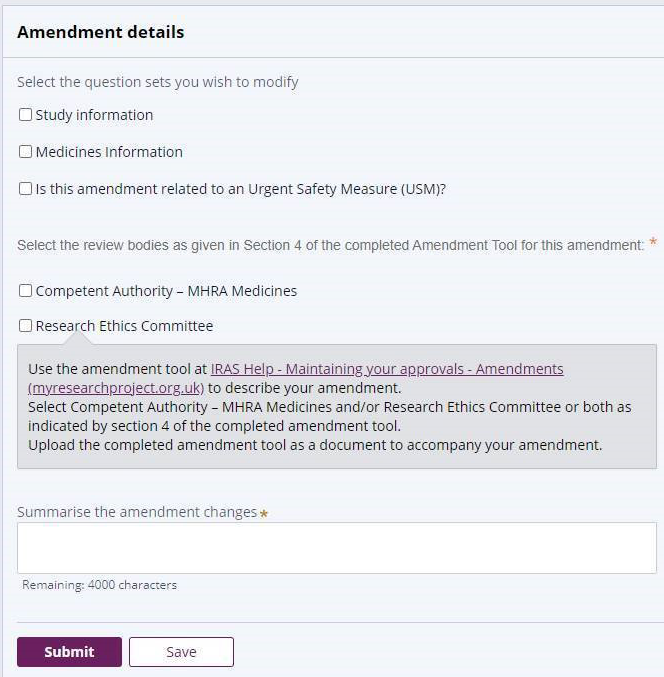
A modification workaround is currently in place for combined review projects prepared before 31 December 2020. For these projects the Study information and Medicines Information sections will not be complete. This is because this version of IRAS was not in use at the time the application was prepared.
When making an modification to these studies you will need to avoid activating the system verification. Triggering this verification would mean you would need to complete the entire dataset.
For the workaround start by creating the modification. From the modification details page de-select all question sets. You should deselect them regardless of whether they are applicable to your modification. You can then supply details of the modification by attaching a completed modification tool and relevant supporting documentation in the documents section. Uploading documentation will not activate the validation.